
UUID: powerman@dr.drummie
Last edited:
4 months ago
2026-05-11, 12:33
Last commit: [a9c9b4fb] Add/update Hungarian translations (#8668)
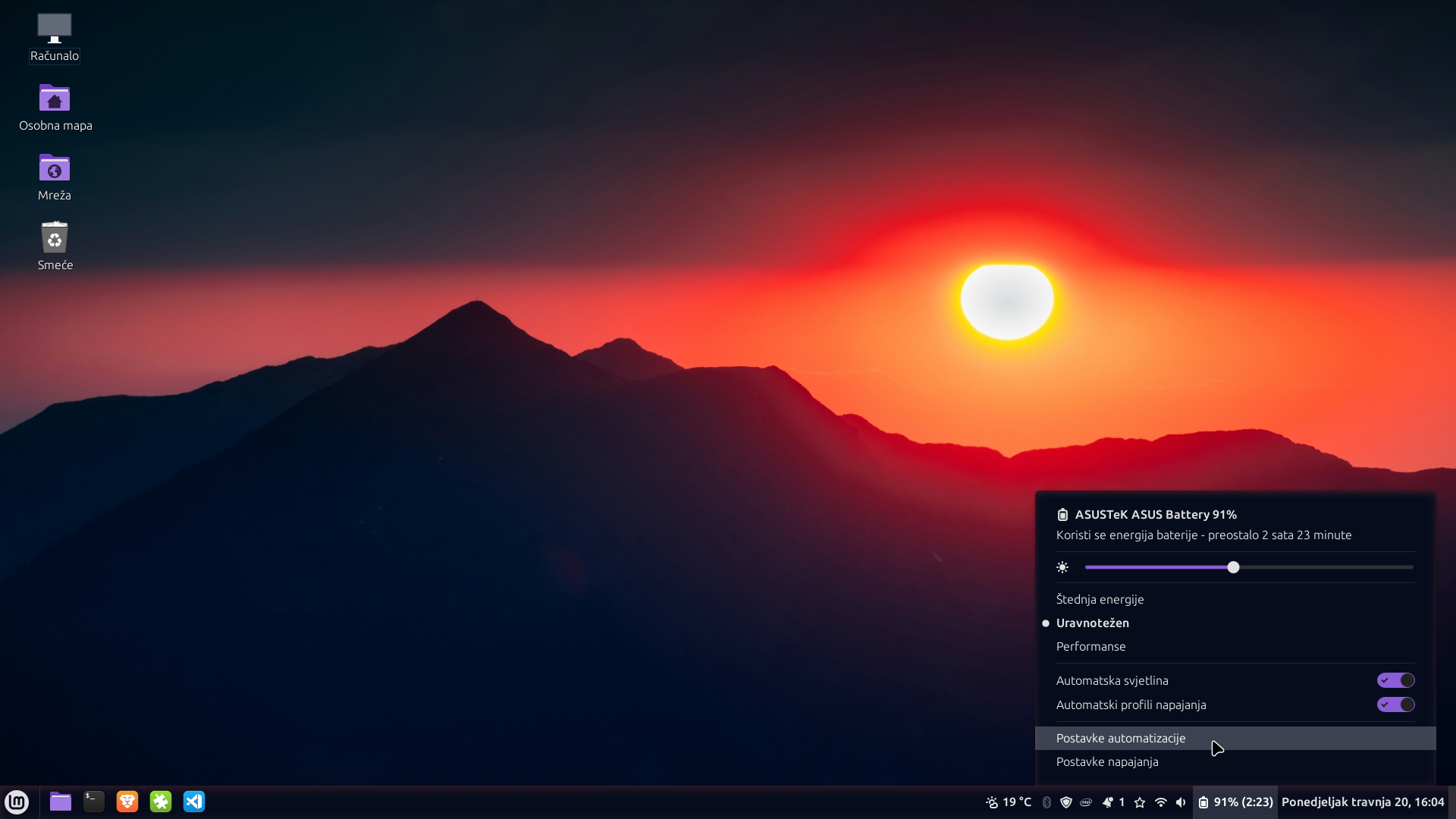
Enhanced power applet with automatic brightness and power profiles for AC/Battery
README
PowerMan - Power Automation for Cinnamon
A laptop-focused power applet for Cinnamon 6.x with automatic brightness and power profile switching for AC/Battery — extends the default Cinnamon power applet.

Features
🔋 Enhanced Power Management
- Reliable power source detection (AC/Battery) via UPower — works correctly even on laptops with battery charge-protection circuits that report
DISCHARGINGat full charge while plugged in - Battery level notifications with customizable thresholds
- Battery monitoring with detailed device information — based on the original
power@cinnamon.orgapplet
💡 Automated Brightness Control
- Separate brightness levels for AC power and battery operation
- Automatic brightness switching when power source changes
- Idle dimming with configurable timeout and dim levels
- Screen and keyboard backlight support via Cinnamon Settings Daemon
⚡ Power Profile Automation
- Automatic power profile switching between AC and battery modes
- Performance mode on AC power, balanced/power-saver on battery (or by user's choice in settings)
- Low battery protection - automatic power-saver mode when battery is low
- Manual override support through standard system controls
⚙️ Configuration
- Settings and options appear only when supported hardware is detected
- System integration - one-click removal of the default Cinnamon power applet directly from the popup menu
- Debug logging - for troubleshooting
Installation
Method 1: From Cinnamon Spices
- Open System Settings → Applets
- Switch to the Download tab
- Search for "PowerMan" → click Install
- Go back to the Manage tab → add PowerMan to your panel
Method 2: Manual Installation
- Download or clone this repository
- Copy the
powerman@dr.drummiefolder to~/.local/share/cinnamon/applets/ - Right-click on the panel → "Applets" → Find "PowerMan" → Add to panel
Configuration
Access settings by right-clicking the applet and selecting "Configure..." or directly from applet's popup:
Display and Advanced
- Panel Display: Choose what information to show (battery percentage, time remaining, etc.)
- Notifications: Enable/disable automation notifications
- System Integration: Remove the default Cinnamon power applet via a button in the popup menu (visible only while the original applet is active)
- Debug Logging: Enable detailed logging for troubleshooting
Brightness Control (available only if brightness control detected)
- Automatic Brightness: Set different levels for AC and battery power
- Idle Dimming: Automatically dim screen when idle
Power Management (available only if power profiles and battery detected)
- Profile Automation: Different power profiles for AC/battery
- Battery Saver: Auto-enable power-saver mode on low battery
Hardware Requirements
PowerMan automatically detects available hardware and shows only relevant settings:
- Any system: Basic power monitoring and device status (same as default Cinnamon power applet)
- 🔋 + Battery and Power profiles: Power profile automation and battery saver depending on power source
- 💡 + Brightness control: Automatic brightness switching depending on power source, idle dimming
Compatibility
- Cinnamon Desktop: 6.4, 6.6+ (Linux Mint 22.1+ and other Cinnamon-based distributions)
- Brightness automation requires
cinnamon-settings-daemon— standard on Linux Mint; present on most Cinnamon-based distros. The applet auto-detects availability and disables features gracefully if not found. - Power profiles require
power-profiles-daemon
Troubleshooting
Known Issues
- If dimming is enabled and screen is dimmed (user is idle), power profile would be switched immediately, but brightness will be switched after user become active again (to avoid screen brightness dimming bugs)
- If you have dimming enabled for i.e. only battery mode, after auto switching from AC to battery, dimming would not be active until some user activity
Settings not appearing
- Restart Cinnamon:
Alt+F2→ typer→ Enter - Check hardware detection in debug logs
- Ensure required services are running (UPower, PowerProfiles daemon)
Features showing as unavailable
- Info messages explain when hardware/software requirements are not met
- Examples: "Screen brightness control is not available" or "Power profile automation is not available"
- Enable debug logging to see detailed hardware detection results
Brightness control not working
- Test manual brightness:
brightnessctlor system settings - Restart Cinnamon Settings Daemon:
killall csd-power - Check if laptop supports software brightness control
Power profiles not switching
- Verify power-profiles-daemon is running:
systemctl status power-profiles-daemon - Test manual switching:
powerprofilesctl set balanced
Development
Based on the original Cinnamon Power applet with enhancements like power source automation.
Contributing
- Test on multiple hardware configurations
- Report issues or improvements on GitHub
Translation
Translations for 17 languages are included. Most are machine-generated — corrections and improvements are welcome via PR.
Cinnamon Spices installation: .po files are automatically compiled during installation.
License
GPL-3.0 - Based on original Cinnamon power applet code.
Credits
- Original Cinnamon Power Applet: Linux Mint Team
- Applet icon: Batteries icons created by phatplus - Flaticon
- Inspiration: My aged laptops with old batteries
Log In To Comment!
0 Comments