

README
Auto Move Windows
This Cinnamon spice automatically moves and resizes newly opened application windows according to per-application rules.
GNOME Terminal Positioning
GNOME Terminal has a known issue where geometry rules (position and size) may not apply correctly when the window is created directly on its target workspace. This extension includes an automatic workaround for Terminal: when applying a rule to Terminal, the window is briefly created on an alternate workspace, the geometry is applied, and then it's moved to the target workspace. This process is invisible to the user and takes about 250ms total.
No action is required—Terminal positioning works automatically with this workaround.
If other applications exhibit the same positioning issue, you can add them to the "Apps Needing Workspace-Switching Workaround" list in the extension settings. The list uses WM_CLASS patterns (case-insensitive substring match). Use xprop WM_CLASS to find an application's WM_CLASS value.
Configuration
Rules are stored in the extension settings under the key app-rules as a JSON array of objects.
Each rule object has this shape (fields are optional unless noted):
wmClass(string, required): the window class returned bymetaWindow.get_wm_class()(e.g. "Firefox").
Matching modes
By default rules match against the window's WM_CLASS value using a case-insensitive substring match. You can also match against the window title by adding "matchField": "title" to a rule. Title-based patterns are lowercased by the prefs UI on save/capture, and the runtime compares titles case-insensitively against the stored lowercase pattern.
Example title-based rule: { "matchField": "title", "wmClass": "google calendar", "workspace": 2 }
workspace(integer, optional): 0-based workspace index to move the window to.x,y(integer, optional): top-left coordinates where the window should be placed.width,height(integer, optional): desired width/height in pixels.maximized(boolean, optional): iftrue, the window will be maximized (fullscreen). This takes precedence overx,y,width, andheight.maximizeVertically(boolean, optional): iftrue, the window will be maximized vertically (full height) but will respect thewidthsetting. Theheightvalue is ignored. Requireswidthto be specified.firstOnly(boolean, optional):- If
true: Only the first window instance is placed on the assigned workspace (initial placement only). Subsequent windows are ignored. - If
false: All window instances are placed on the assigned workspace with continuous enforcement. The window will be automatically moved back if it's moved to a different workspace.
- If
Example app-rules JSON:
[ { "wmClass": "Firefox", "workspace": 1, "x": 50, "y": 50, "width": 1200, "height": 800, "firstOnly": false }, { "wmClass": "Gnome-terminal", "workspace": 2, "width": 1000, "height": 700, "firstOnly": true }, { "wmClass": "Chrome", "workspace": 0, "maximized": true }, { "wmClass": "Kitty", "workspace": 3, "x": 1280, "width": 3626, "maximizeVertically": true } ]
Editing rules
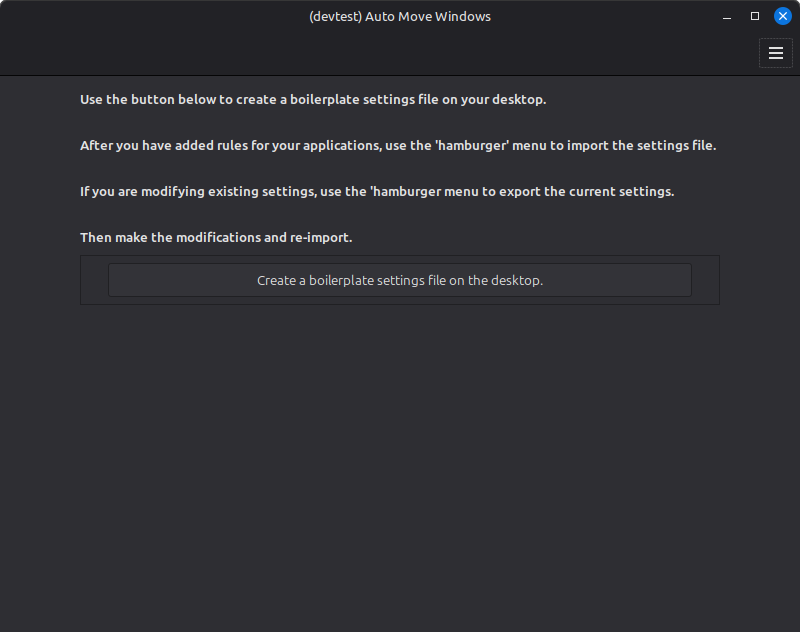
- Export the settings from the extension, edit the file in a text editor and reimport it. The settings page can create a starter settings file and open it in your text editor of choice to get started. There is no custom UI to edit the file, due to the complexity of it.
Notes
- The extension matches windows by
wmClass. Some applications report varying WM_CLASS; if rules don't match, check the application's WM_CLASS (e.g. withxprop WM_CLASS). - Workspace indices are 0-based.
License
MIT
Attributions
Extension icon created by Freepik - Flaticon https://www.flaticon.com
Log In To Comment!
2 Comments